How to build a custom business management app without code
The best business apps are often built by the people who run the business. They know which spreadsheet breaks every Friday, which follow-up always gets forgotten and which subscription costs too much for the three features they actually use. A custom business management app turns that knowledge into a tool shaped to exactly how you work, and you can build one without code.
Building a business app without code starts with the workflow you want to fix and the people who will use it. In Thunkable, the AI turns that description into screens and logic. You add login, a cloud database, invoices or a booking calendar, then publish a native iOS and Android app for your team or customers. This guide covers the four most common business management apps, the features each one needs, example apps built with Thunkable, and how to start.
In this guide:
- Inventory, POS, invoicing and quoting
- Client and lead tracking
- Running an organization
- Booking for service businesses
- Feature checklist and FAQ
Why build your own business app?
Off-the-shelf software makes you adapt to it. A custom app adapts to you.
- Fit: Track exactly the fields, steps and statuses your business uses, nothing more.
- One place: Pull data from the tools you already use instead of copying it between them.
- On the go: Your team works from their phones on the shop floor, at a client site or between appointments.
How do you build an inventory, POS or invoicing app?
An inventory, point-of-sale and invoicing app replaces the spreadsheet or generic SaaS tool an owner runs on with a tool shaped to their exact business: what they stock, who has it and how they bill.
Picture this: A contractor who used to spend Monday mornings hunting for a missing drill now scans a tag and knows exactly who has it and which site it's on.
Who builds these: Retailers, contractors, equipment rental shops, wholesalers, makers and repair shops.
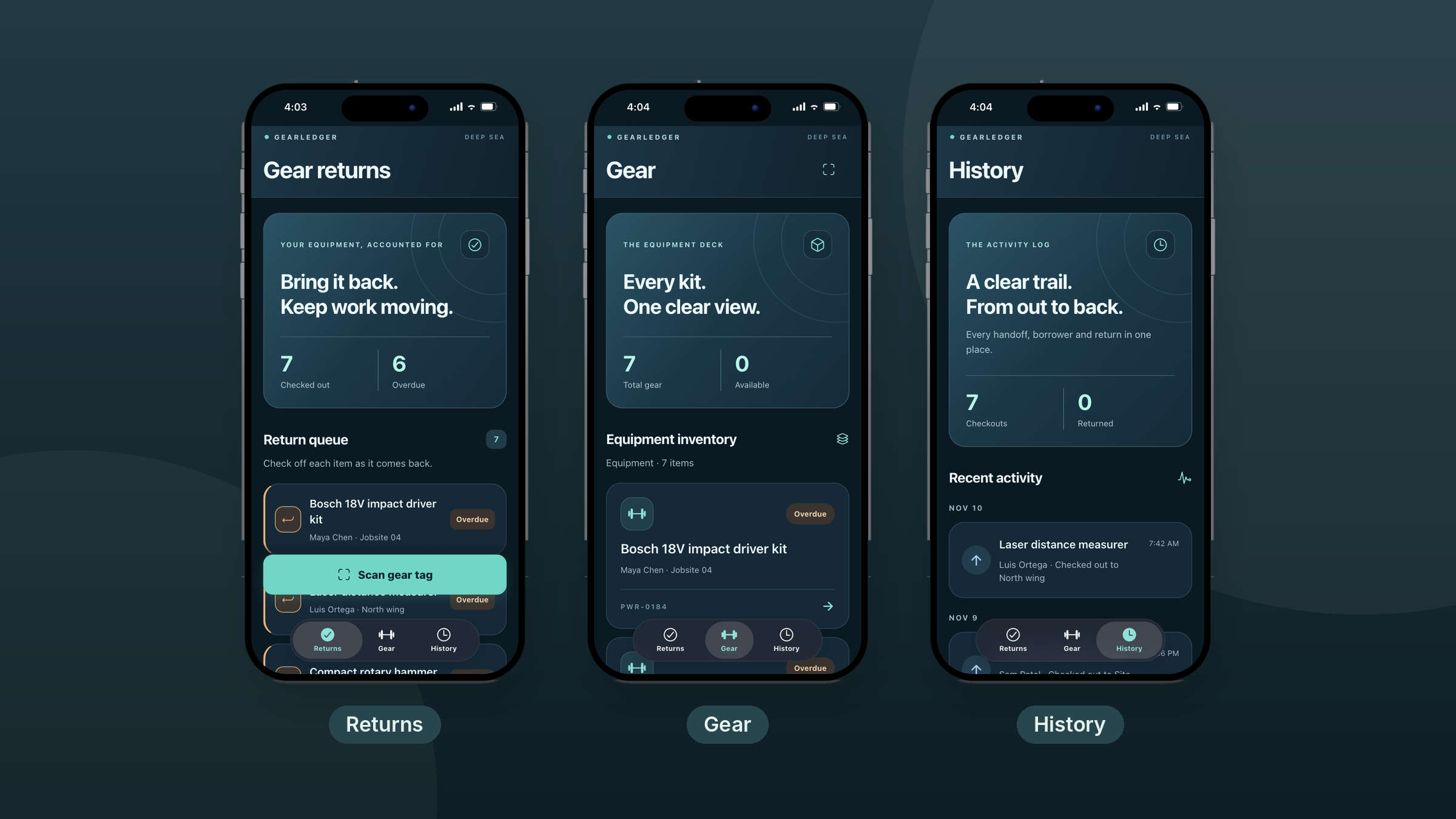
Inside an example app: GearLedger, built with Thunkable, tracks a crew's shared equipment from checkout to return.
- Returns: A return queue of every item that's checked out, showing who has it, which jobsite it's at and whether it's overdue. A “Scan gear tag” button checks items back in.
- Gear: The full equipment inventory with totals for gear owned and available, plus each item's asset tag and status.
- History: An activity log of every checkout and return, so there's a clear trail of who had what and when.
Must-have features:
- Cloud sync so stock and checkout status stay current across every phone and tablet
- Barcode and tag scanning to check items in and out with the phone camera
- Search and filter to find an item, borrower or location fast
- Login so each staff member has their own access and activity history
Ways to extend it: add PDF invoices and quotes generated from an order or rental, push notifications when gear is overdue, or a point-of-sale screen for in-person sales.
Tip: Start with the one task that wastes the most time today, usually stock counts or chasing missing items. GearLedger leads with its return queue for exactly that reason. Get that working end to end before adding reports.
How do you build a client and lead tracking app?
A client and lead tracking app is a simple, custom CRM that keeps every client's details, history and next step in one place, so nothing slips through the cracks.
Picture this: A fitness instructor starts every session already knowing what the client worked on last time and what they planned to try next. Clients notice, and they keep coming back.
Who builds these: Trainers, coaches, consultants, agencies, real estate and insurance agents, and freelancers.
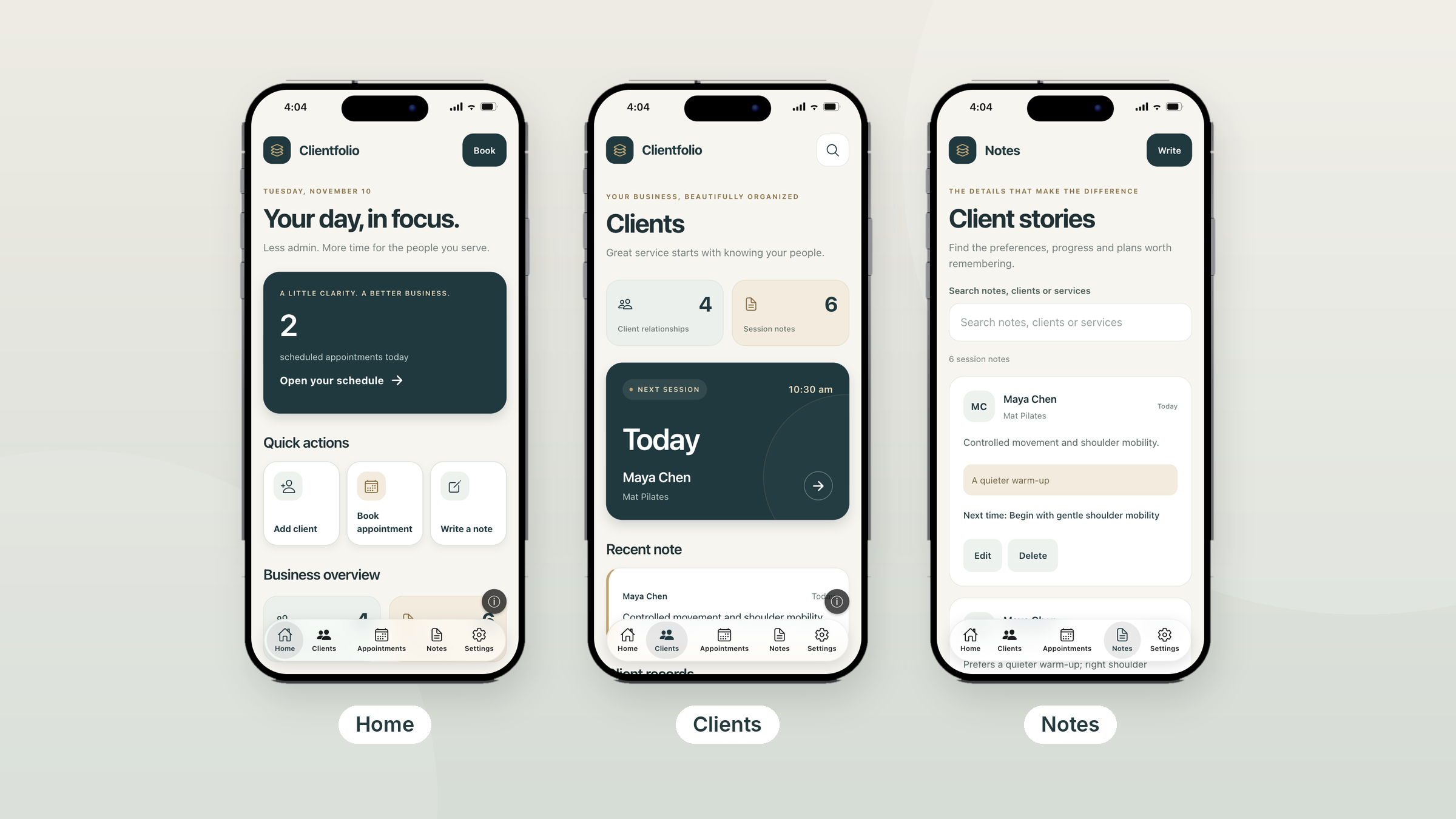
Inside an example app: Clientfolio, built with Thunkable, is a client hub for a solo service provider, shown here for a Pilates instructor.
- Home: Today's appointment count, quick actions to add a client, book an appointment or write a note, and a business overview.
- Clients: Client relationships and session note totals, the next session up, and the most recent note.
- Notes: Searchable session notes for each client, with preferences and a “next time” plan, plus edit and delete.
- Settings: Business details and service offerings that speed up booking.
Must-have features:
- Login so each team member sees their own clients
- Cloud sync so notes from a session are available on any device right away
- Search and filter across clients, notes and services
- Reminders and push notifications for follow-ups and renewal dates
Ways to extend it: add CSV and Excel import-export to bring in an existing contact list, API integrations to pull leads from your website forms, or a pipeline view to track leads by stage.
Tip: The notes are the real value. Clientfolio prompts for a “next time” plan on every session note, so the next appointment starts where the last one left off. Import your existing contact spreadsheet on day one so the app is useful immediately.
How do you build an app to manage staff, volunteers or members?
An organization management app helps you coordinate the people who keep things running, whether that's a crew across job sites, staff at a clinic or school, or volunteers at a church, club or charity.
Picture this: A crew lead stops chasing paper timesheets at the end of every week. Hours come in from each site as they happen, and payroll stops being a weekly scramble.
Who builds these: Operations managers, administrators, contractors, program coordinators and volunteer leaders.
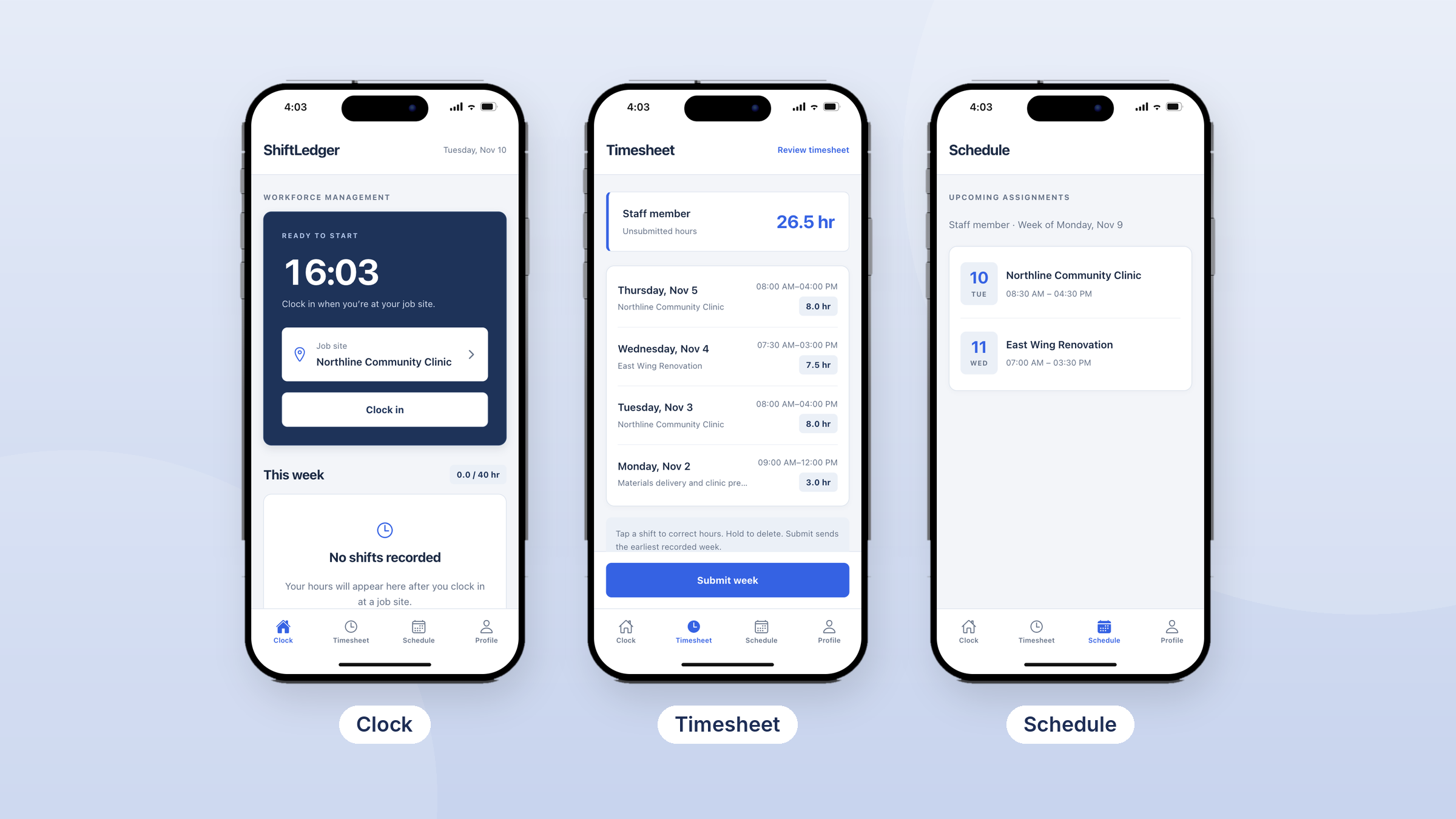
Inside an example app: ShiftLedger, built with Thunkable, handles time tracking for a team that works across several sites.
- Clock: Staff pick their job site and clock in when they arrive, with a running total of hours for the week.
- Timesheet: Each shift with its date, site, start and end time and hours. Staff can tap a shift to correct it, then submit the week for approval.
- Schedule: Upcoming assignments for the week, with the site and shift times for each day.
- Profile: Hours worked against scheduled hours, the person's primary job site and daily attendance.
Must-have features:
- Login so every staff member, volunteer or member has a secure account
- Roles that show admins, managers and staff different screens and permissions
- Cloud sync so managers see clock-ins and timesheets as they happen
- GPS to confirm people are at the right site when they clock in
Ways to extend it: add push notifications for schedule changes and announcements, a manager approval view for submitted timesheets, or a member directory and event sign-ups for churches, schools and clubs.
Tip: Map out who needs to see what before you build. ShiftLedger keeps the staff view simple (clock in, check hours, see the schedule), while managers need a different view to approve time and assign shifts. Clear roles make both work.
How do you build a booking app for a service business?
A booking app shows your open time slots and keeps every appointment organized, so you spend less time on the phone and more time on the job.
Picture this: A barber finishes the last cut of the day, checks the app and sees tomorrow is already filling up, booked by clients while the shop was closed.
Who builds these: Barbers, salons, fitness instructors, lawn care and pool services, mobile detailers, trainers and tutors.
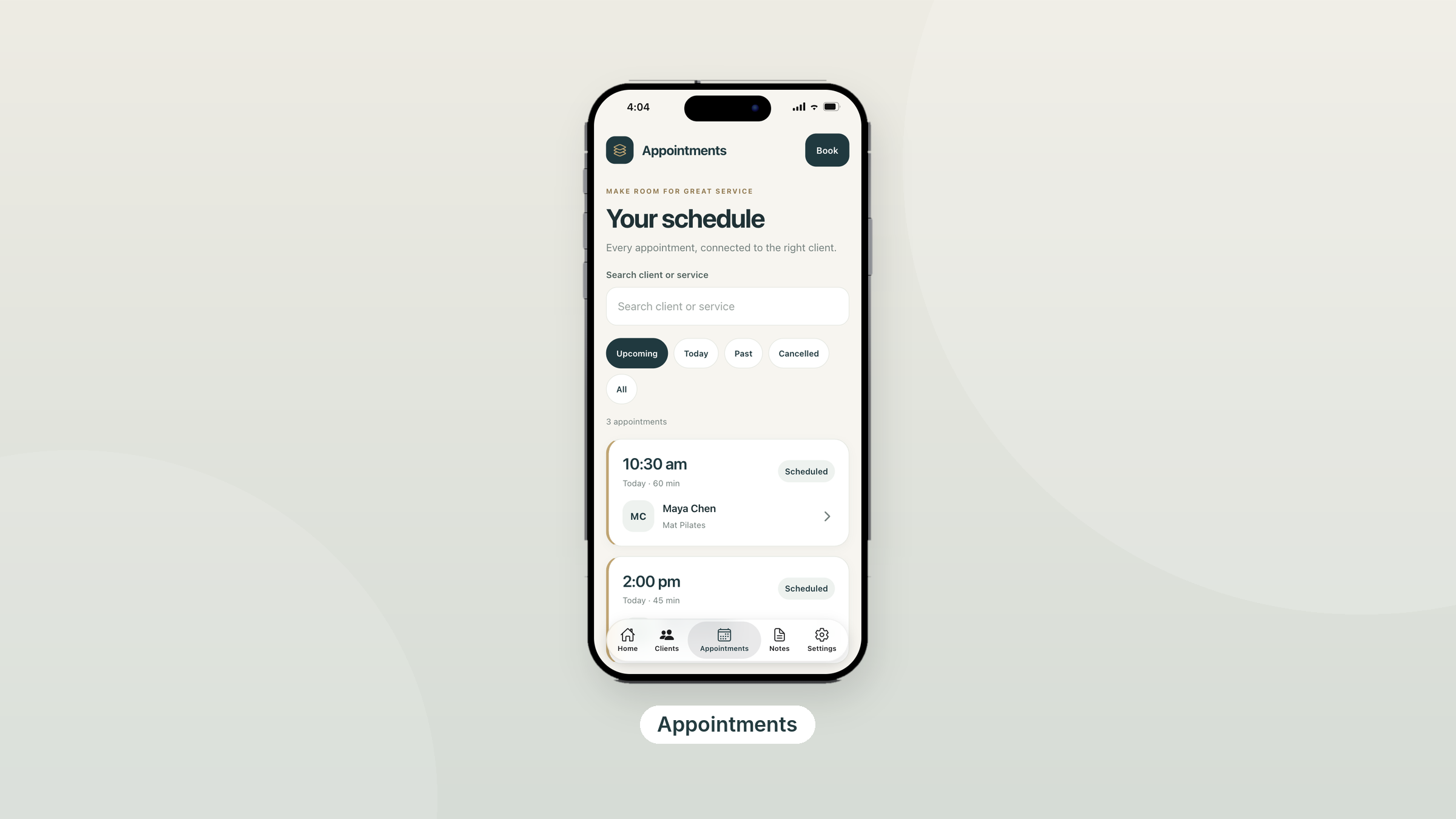
Inside an example app: Clientfolio, the client hub above, shows how booking fits into a service business's day. Its Appointments tab connects every booking to the right client.
- Search and filters: Find an appointment by client or service, and switch between upcoming, today, past, cancelled and all.
- Appointment cards: Each one shows the time, length, client, service and status.
- Book button: Add a new appointment from anywhere in the app.
Must-have features:
- Calendar and scheduling to show availability and manage appointments
- Search and filter to find a client, service or date fast
- Cloud sync so the calendar updates instantly and nobody double-books
- Login so returning customers can rebook in a couple of taps
Ways to extend it: add push notifications for confirmations and reminders that cut no-shows, payments to take deposits, or GPS so customers can see when a mobile service is on the way.
Tip: Tie every booking to a client record, as Clientfolio does. When you open an appointment, you see the client's history and notes in the same place. Send an automatic reminder the day before every appointment.
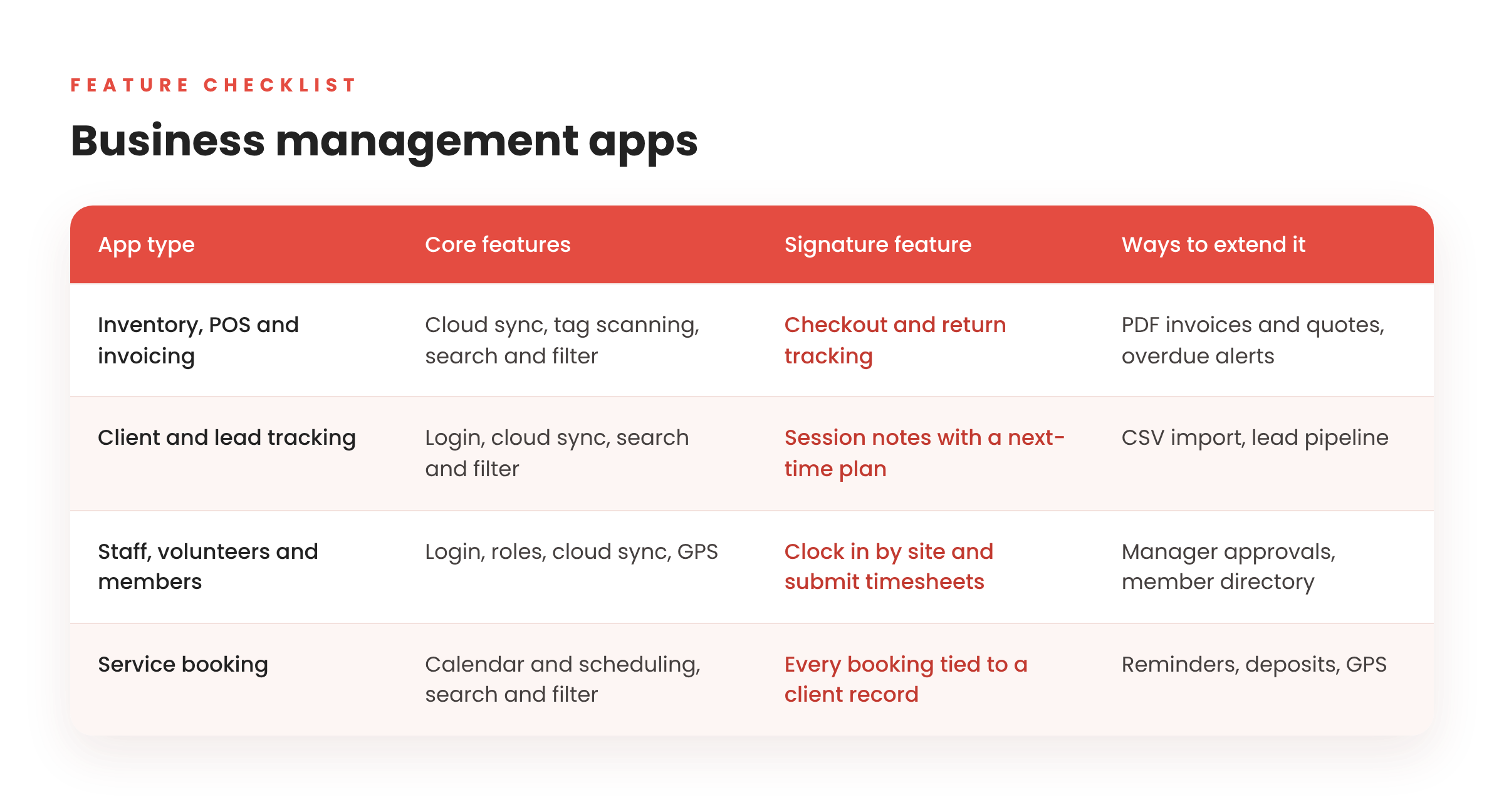
Which features does each business app need?
Why build your business app with Thunkable?
Thunkable is the AI-powered mobile app builder that lets you shape software around your business instead of the other way around. Founded in 2015 by researchers with roots at MIT and Google, Thunkable has more than 6 million users in 194 countries, including teams inside Fortune 100 companies.
- AI builds it with you, and you stay in control. Describe your workflow and get working screens and logic. Plan changes in Discuss Mode, finish things yourself in the visual editor, or edit code directly when your process needs custom logic.
- Built for work in the field. Native iOS and Android apps, not websites in a wrapper, with 25+ device features, including barcode scanning for inventory, GPS for job sites, push notifications for reminders and biometrics for secure sign-in.
- Accounts and data your way. Add email, Google or Apple sign-in, and connect a free Supabase account for a cloud database your whole team shares.
- Change it safely. Version History lets you try improvements and roll back if something isn't right, so your team never loses a working tool.
- Your brand, not ours. Publish white-label apps with no Thunkable branding on the Builder and Advanced plans, for customer-facing apps or tools you build for clients.
How to get started in 4 steps
- Describe your workflow. Tell the AI builder what you track and who uses it, for example “an app for my crew to log jobs and send quotes.”
- Review the generated screens. Use Discuss Mode to plan features and refine the logic, or take direct control in the visual editor.
- Connect your data. Add email, Google or Apple sign-in, connect a free Supabase account for your cloud database, import your spreadsheets and connect the tools you already use.
- Test and roll out. Preview on your phone, then publish to the App Store and Google Play for your team or customers.
Frequently asked questions
Can I build a business app without coding?
Yes. Thunkable's AI generates screens and logic from a plain-language description, and you can add sign-in and connect a free Supabase account for a cloud database. No coding is required to get started.
What's the difference between a native app and a web app in a wrapper?
A native app is built for iOS and Android, so it can use device features like barcode scanning, GPS and biometrics directly. A wrapped app is a website inside an app shell, which can feel slower and may lose access to some device features. For tools your team uses all day, that difference shows. Thunkable builds native apps.
Is a custom app better than off-the-shelf software?
It depends on fit. If you spend time working around a tool or copying data between tools, a custom app built around your workflow usually saves that time.
Can I import my existing spreadsheets?
Yes. You can bring in data from CSV and Excel files and connect existing tools through API integrations.
Can different people see different information?
Yes. User roles let you give owners, staff, members or customers their own screens and permissions.
Can my team use it on iPhone and Android?
Yes. Thunkable builds native iOS and Android apps. Store publishing is included on the Builder and Advanced plans.
Build the tool your business actually needs
Stop bending your business around generic software. You already know your workflow better than any off-the-shelf tool does, and that's the hardest part.
Your first step this week:
- Pick the one task that costs your business the most time.
- Write down the information you track for it today, even if it lives on paper.
- Describe it to the AI builder and see your first version take shape.
Turn the way you already work into an app your whole team can use.

View Pricing
If you’re an administrator or requesting multiple licenses for your school or district, our team will follow up with you directly to learn more and help set up the right Education plan. We’ll work with you to make sure Thunkable is the best fit for your districts/classrooms.
We also offer special discounts for individual students and educators. Apply below, and you’ll receive a promo code via email to claim your discounted Thunkable Education plan.


Related Resources
How to build a custom business management app without code

How to build an e-commerce or marketplace app without code
How to build a healthcare or wellness app without code
Start
Creating
Creating



Your idea can be live today.